Set up WOptimizer step by step, with pictures
From download to your first boost: every screen you will see, with arrows and what to press.
6 min read
1. Download and install
- 1Open the Download page on woptimizer.weakless.pro and select Download for Windows.
- 2Open the downloaded file. If Windows shows “Windows protected your PC”, select More info, then Run anyway. It happens only once.
- 3Choose your language, select Install and approve the Windows prompt.
- 4Leave Open WOptimizer now selected and select Finish.
WOptimizer never installs drivers or extra programs, and nothing changes on your PC until you approve it.
2. Your home screen
WOptimizer opens on Home. Everything you need most is here.
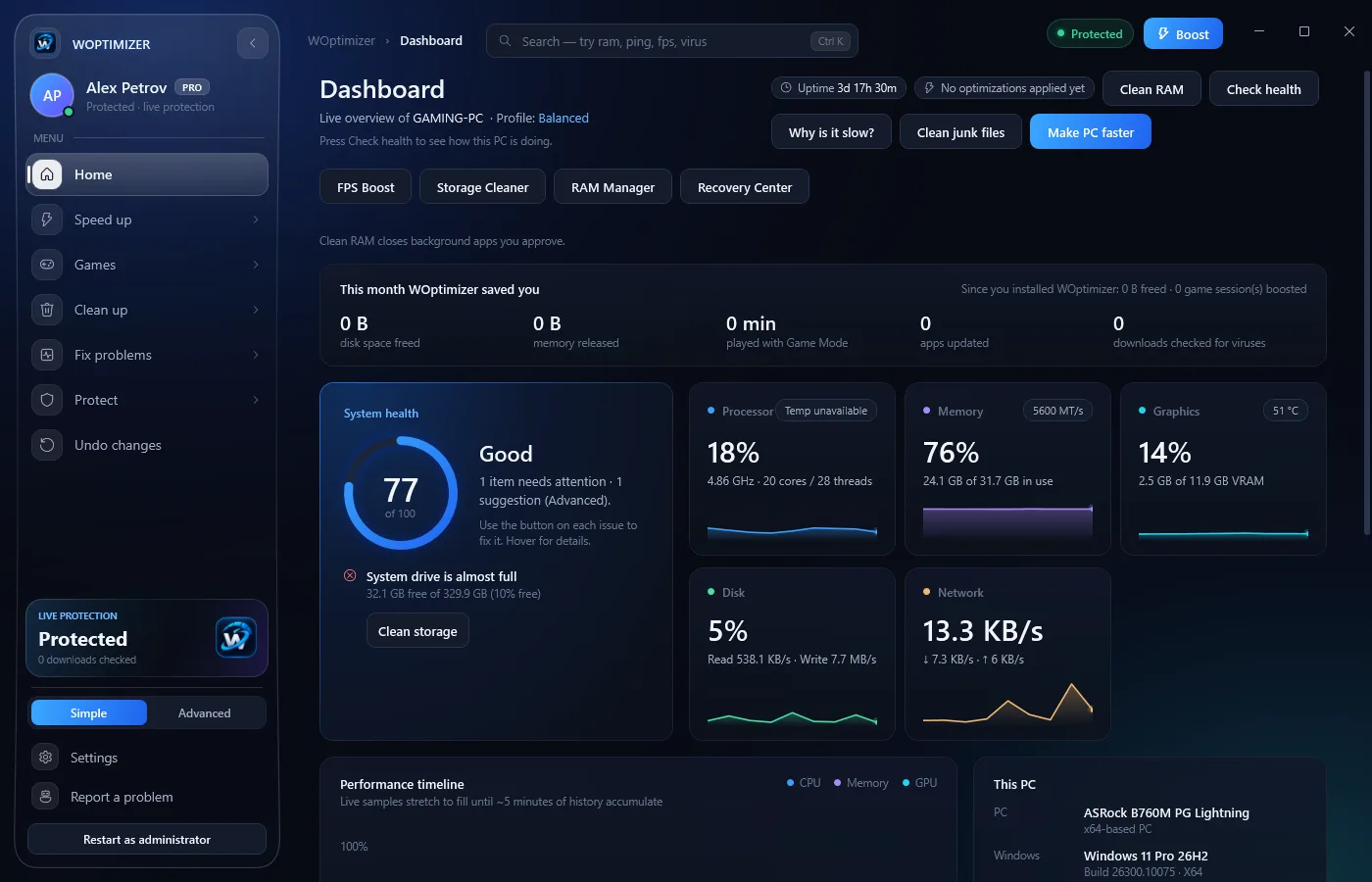
- 1Your health score from 0 to 100. Below it, each problem has a button that fixes it.
- 2Make PC faster runs the recommended speed-ups. You see every change before it runs.
- 3The menu is grouped by what you want to do: Speed up, Games, Clean up, Fix problems, Protect and Undo changes.
- 4Simple shows the tools most people need. Switch to Advanced to see every tool.
- 5Not sure where something is? Type it here, for example ping, RAM or virus.
3. Boost a game
Open Games, then FPS Boost. Do this before you start playing.
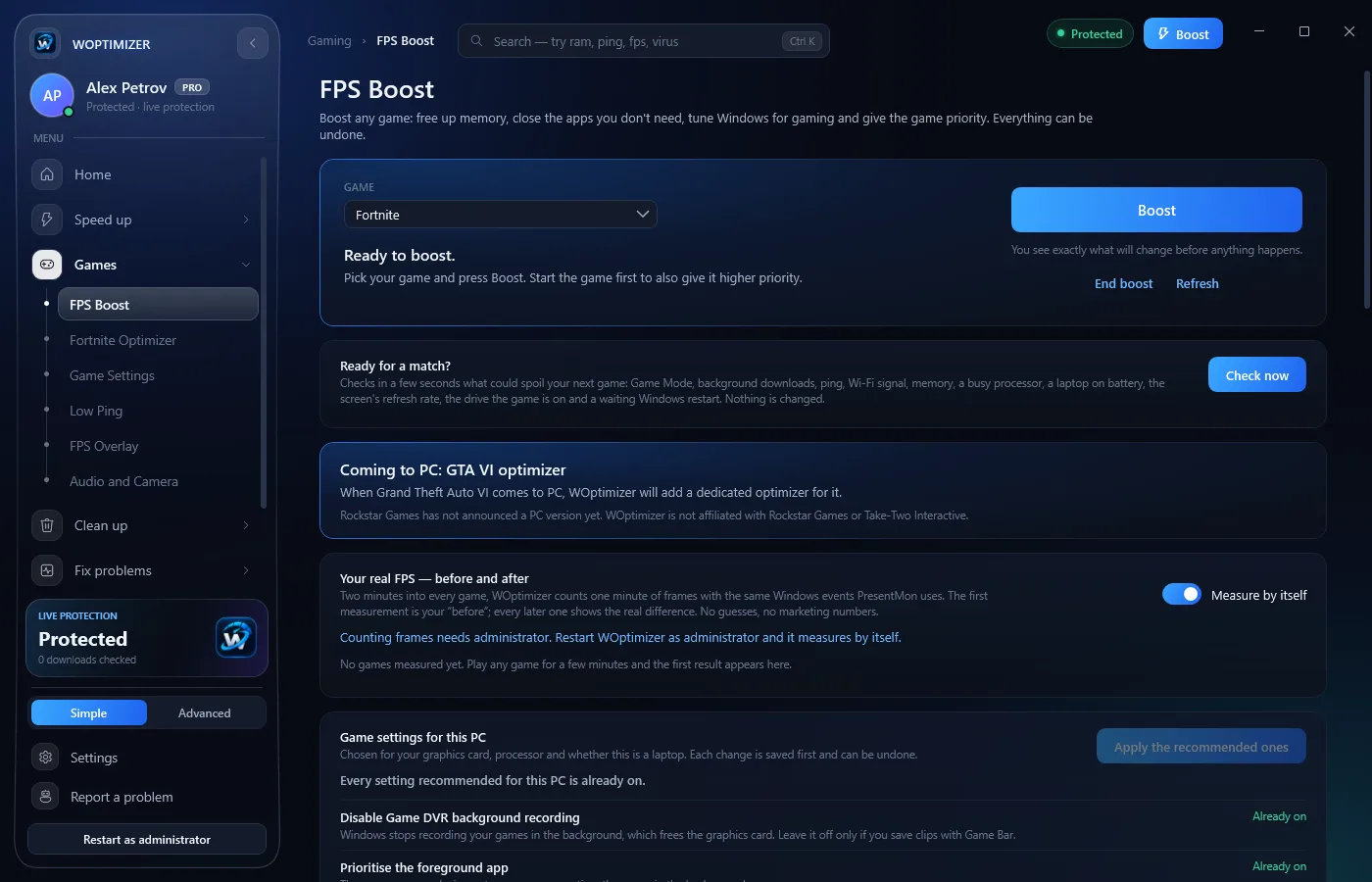
- 1Pick your game from the list.
- 2Press Boost. WOptimizer closes background apps you approve and gives the game more of the PC.
- 3Check now looks for anything that could spoil your next match, like a download running or a weak Wi-Fi signal. Nothing is changed.
- 4Fortnite Optimizer and Game Settings make a game's own graphics lighter, for even more FPS.
4. Make game graphics lighter
In Fortnite Optimizer, choose how light you want the game. Ultra light is the lightest: Performance mode, everything on its lowest and a lower 3D resolution.
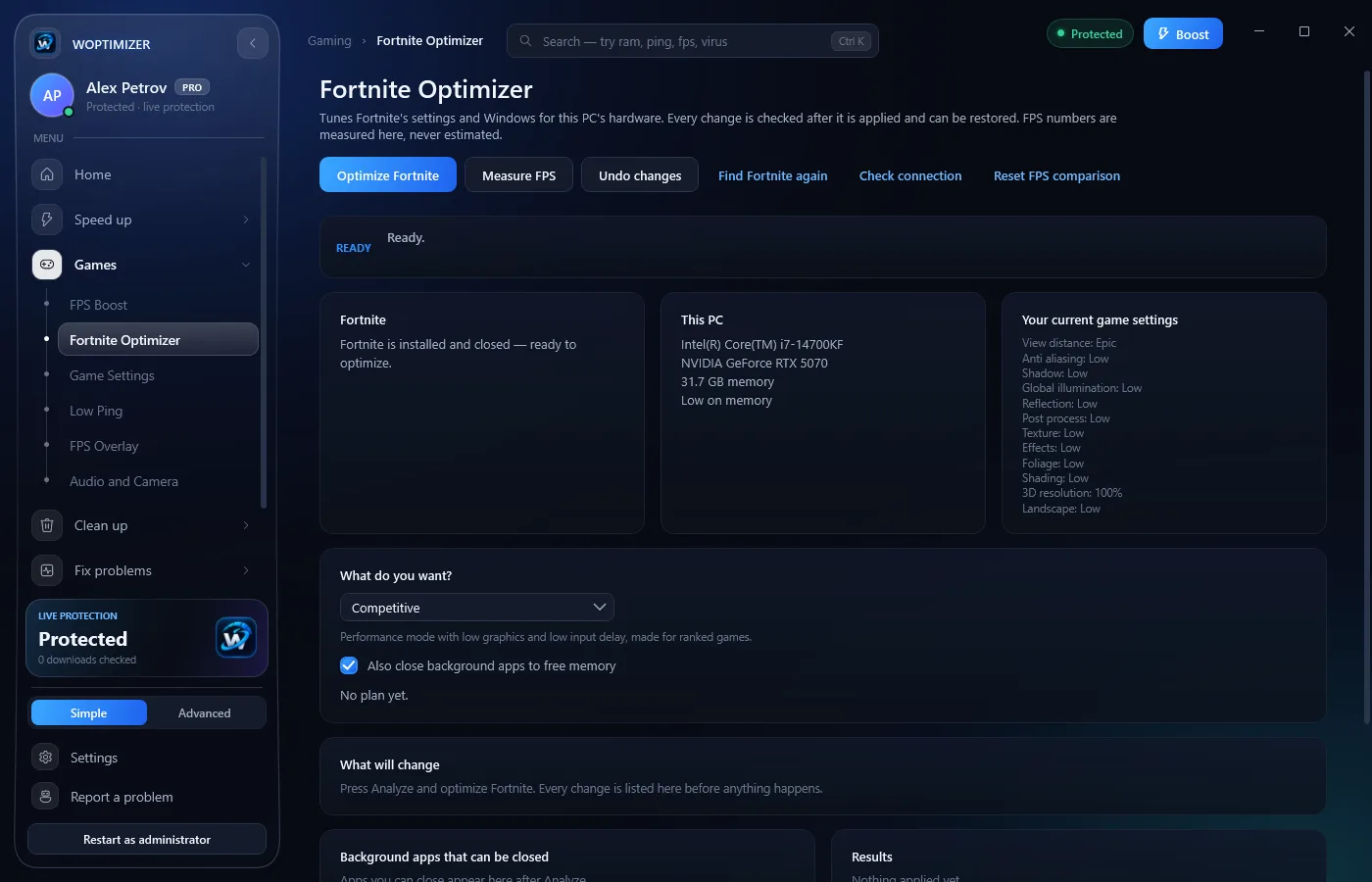
- 1Choose a profile. The line under it says what it does.
- 2Press Optimize Fortnite. You see every setting that will change before anything happens. Close Fortnite first.
- 3Your current Fortnite settings, so you can compare before and after.
- 4Undo changes puts your old settings back at any time.
For CS2, VALORANT and Apex Legends, open Game Settings and pick the game's lightest preset.
5. Choose your language and when WOptimizer starts
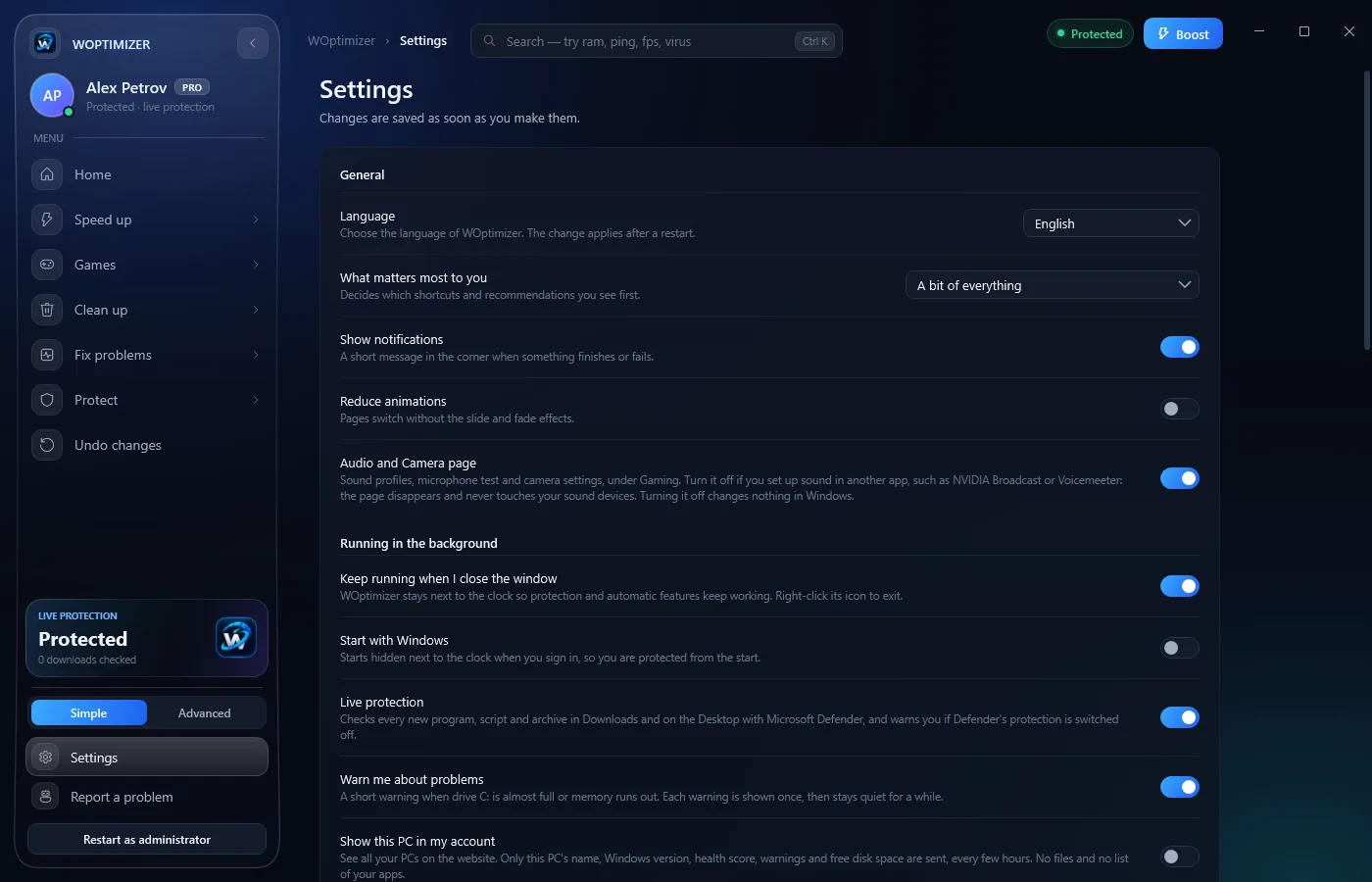
- 1Pick your language. WOptimizer speaks 11 languages.
- 2Turn on Start with Windows to keep live protection on from the moment you sign in.
6. Undo anything
Every change WOptimizer makes is saved first, so you can always go back.
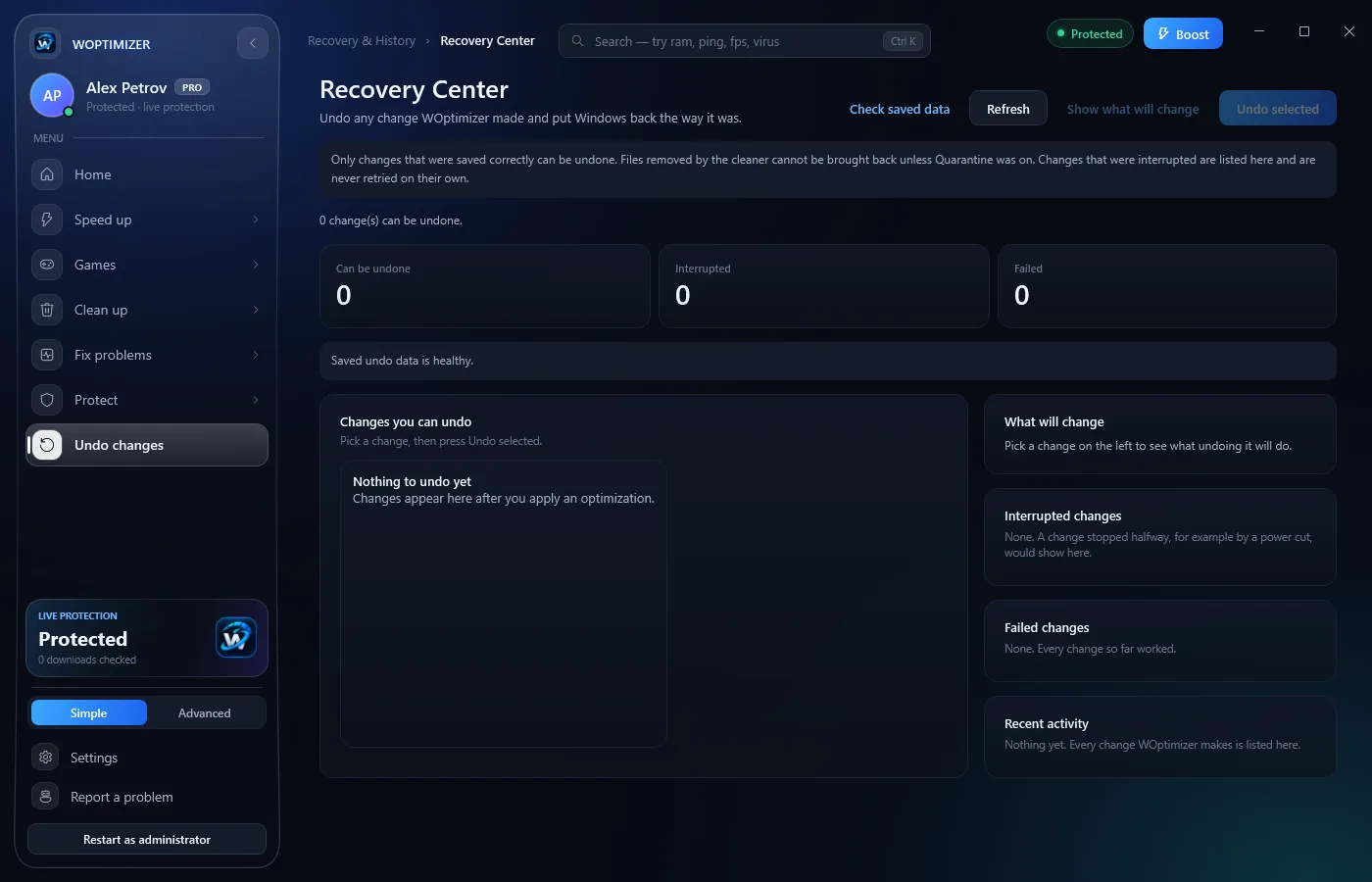
- 1Open Undo changes in the menu.
- 2Every change you can undo is listed here. Pick one.
- 3Press Undo selected, and Windows is back the way it was.
On a Mac
- 1On the Download page, select Download for Mac. For a Mac with an Intel processor, use the Intel link under it.
- 2Open the downloaded file. If macOS says it cannot check it, open System Settings, Privacy & Security, and select Open Anyway.
- 3Follow the installer, then open WOptimizer from Applications.
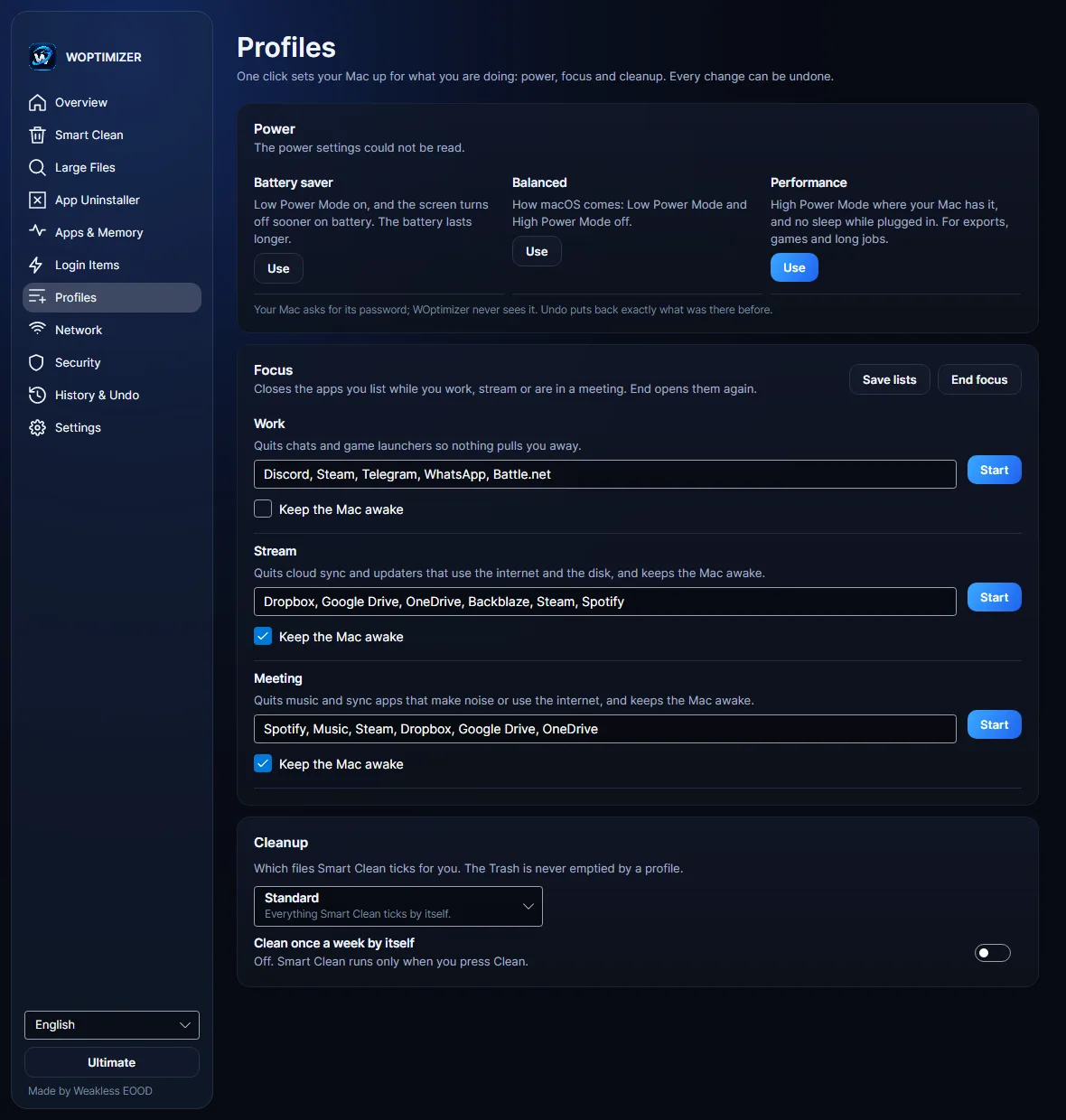
- 1Power profiles: Battery saver, Balanced or Performance. Your Mac asks for its password; WOptimizer never sees it.
- 2Focus profiles quit the apps in the list while you work, stream or are in a meeting. End focus opens them again.
- 3Cleanup profiles decide what Smart Clean ticks. The Trash is never emptied by a profile.
- 4Pick your language here.